Apple Watch is one of the best products launched by Apple after the iPhone. It has many advanced features that allow users to access their mobile device activities through a Watch screen. Out of which the swipe-up is considered one of the product’s best features. It helps users to control wifi and Bluetooth settings just by simply swiping up. whereas a user can also customize the same as per their needs.
But recently, it has been discovered that many customers are facing issues with these specific features. There are many assumptions for the occurrence of this error. Many even believe that it started from WatchOS 8.5.1. Well, not just that, there were many other issues also with the remaining feature. And yes, fortunately, Apple did find the solution and resolved the complete issue with the launch of WatchOS 9.
Well, now, this can be a confusing situation. Because even after the solution, many users still faced the same issue. if you are one of them, then no need to worry. We have some amazing cool hacks that can help you to troubleshoot these issues.
Why Can’t I Swipe Up on My Apple Watch?
First, let’s understand what are the possible scenarios that can affect your Apple Watch working. The issue might occur due to hardware problems, app launch failure, or the OS being outdated. There can be some other reason, but the question is what to do if you face such a situation. Well, we have listed some of the best troubleshooting tricks step by step that can help you to bring it back on track.
How To Fix Your Apple Watch That Won’t Swipe Up?
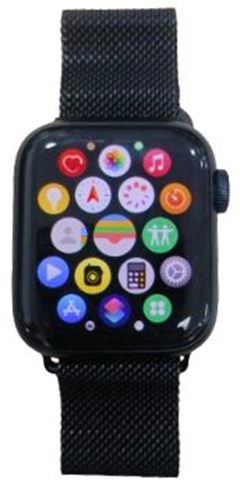 1. Restart Apple Watch
Anyone can get panicked if they find out their Apple Watch is not functioning properly, especially the up-swipe feature. Well, the very first step and trip we can try is restarting the Apple Watch. Being surrounded by electronic gadgets, everyone is aware of the restart process. Just a simple restart process often resolves the issue.
How To Restart an Apple Watch?
Step 1: Press & hold the Power/Side Button of the Apple Watch till the power off slider appears.
Step 2: Slide it to the right to Turn Off the Apple Watch
Step 3: Hold for 10 minutes(at least 5 minutes)
Step 4: Press & hold the power/side button of the Apple Watch till the screen turns on
Step 5: Wait and let the Watch complete the restart process & check if the issue is resolved.
2. Change Apple Watch Face
The Apple Watch face is one of the best features introduced by Apple. It allows users to customize the screen as per requirement. Although it is a default feature, sometimes the Watch face can also be the cause of swipe-up issues. especially if the user has customized it using a third-party app. The issue can be resolved by simply restoring it to the default face or by changing it to some other setting.
Below are the steps to switch to a different Watch face.
Step 1: Open, Watch app on your Apple device (iPhone/iPad)
Step 2: Go to Face gallery using the button present at the bottom of the screen
Step 3: Select the Watch face and Tap on “Add” button to add it to your Watch
Step 4: Swipe left or right on your Apple Watch and check if the issue is resol
3. Unpair and Repair Apple Watch
Sometimes even the restart process won’t help to resolve the issue. This might happen due to poor connectivity between your Apple Watch and iPhone/iPad. In order to overcome it a user can unpair the device and pair it back again, which might resolve the issue.
Note: While performing this activity, ensure both the devices are close together.
4. Turn Off System Haptics
Just like an unpair and repair option, System haptics can also be used as a troubleshooting way to resolve the issue. Users have often observed that the issue was resolved by simply turning the system haptics toggle off and on.
Below are the steps to turn off & on the system haptics
Step 1: Press – Apple Watch digital crown
Step 2: Go to settings
Step 3: Using the crown slide down and select Sound & Haptics
Step 4: Click on system haptics and turn it off
Step 5: Wait for 30 to 60 seconds and toggle it back to turn on
5. Disable Water Lock
Water lock is the coolest feature introduced by Apple; it allows users to use the Watch even underwater. Users can access their Watch while swimming or performing any other water-related activity. Once the feature is enabled, it locks the screen activity and inputs in order to prevent the device from any water damage.
Below are the steps to turn off the water lock
Step 1: Access to the digital crown
Step 2: Slowly turn it clockwise direction
Step 3: Wait for beep sound
Note – The beeps sound is an indication that the water lock is being turned off
Step 4: Once the water lock is turned off the user can see the Watch face and all other access is restored.
6. Turn Off Zoom Feature
Zoom feature has always been a super handy tool for IOS users that allows you to Zoom in & out just by using a finger double tap. Well, sometimes, this feature can actually lead your Apple Watch to be unresponsive. Try turning off the zoom feature; it can help you to resolve the issue.
Below are the steps to turn off the Zoom feature
Step 1: Press – Apple Watch digital crown
Step 2: Go to settings
Step 3: Using the crown slide down and select “Accessibility”
Step 4: Click on Zoom
Step 5: Turn it Off and check if the issue is resolved
7. Remove Screen Protector or Case
Using an Apple Watch accessory in order to protect the device from unwanted damage is an excellent idea. But every accessory an individual installs leads to a poor user experience. For example, screen protector thickness can reduce the screen’s touch sensitivity. Due to this, the user might sometimes experience no response from their device. In the very same way, the screen protector or heavy cases can be one of the causes of your Swipe up issue. Try removing such accessories in order to resolve the issue.
8. Check For Updates(OS, Software)
Nowadays it has become very common for Apple devices to be problematic just before they receive a new update. not just for the Apple Watch my user might experience the same with the iPhone & iPad. It is kind of an intimation from your device to update it with the latest OS version. Well, this can also be one of the reasons a user may face a swipe-up issue. Try checking if the device is eligible for any new OS update.
How to check for updates.
Step 1: Go to settings
Step 2: Click on general
Step 3: Select Software Update
Step 4: If an update is available, then download & install
Note – A user can also update an Apple Watch with the help of their iPhone using the Watch app.
9. Factory Reset Apple Watch
There are cases in the market where users are not able to access the swipe-up feature even after using all the above troubleshooting tricks. Well, that is one indication there can be an issue with system settings. A generic user is completely unaware of the ideal setting for all features to work properly. These generally occur due to frequent customization in the Apple Watch that too with the help of third-party apps. This can be resolved by simply resetting the Apple Watch to its default setting.
Below are the steps to reset the Apple Watch
Step 1: Access to your iPhone/iPad
Step 2: Go to Watch
Step 3: Click on general
Step 4: Scroll down and select “Reset”
Step 5: Click on Erase device content
Step 6: A dialogue box will pop up for confirmation, tap on “Confirm”
Step 7: Once done, follow the instructions on the screen and set up the Watch as a new device.
10. Contact Apple Support
Even after all the attempts, if you are still facing the same issue, then there are chances that the device has some technical hardware or software problem. There are chances that the screen is already damaged or cracked, due to which the feature became unresponsive. In such cases, it is better to contact a nearby Apple support center or connect with Apple support to fix it and avoid further damage.
Why Can’t I Swipe Up on My Apple Watch – FAQs
Ans: There are many functions that can actually help users to access swipe-up features by simply turning them off & on. A user can start with System Haptic, if it doesn’t work, try changing the Apple Watch face, restarting or force restarting the Apple Watch can also help. Even after all this, if it doesn’t work, try unpairing and repairing the Watch with your Apple device.
Ans: In such cases, it is better to restart the device with the help of a digital crown and power button. If a user is unable to access the control center, they can simply press and hold the digital crown and power button together until the Apple logo shows up on screen. Check if the issue is resolved, if not, try connecting with Apple support for better assistance.
Ans: The Red dot only appears for unread notifications on your Apple Watch. Users can restart or perform a force restart process to clear the issue. Even after that, if the problem still persists try any of the above-mentioned methods to resolve the issue
Ans: A force restart can be the best option if you are facing a problem with the response of your Apple Watch. Just press and hold the digital crown and side button together for 10 until the Apple logo appears. unpairing and repairing the devices can also help you to get rid of this issue.
Ans: Generally, this issue occurs if the Apple Watch is not properly connected to the iPhone/iPad. Try checking if the devices are properly connected, if required you can also resync the Apple Watch to resolve the issue. Make sure the airplane mode is turned off in your iPhone. As it will disable the wifi connectivity, which may cause the issue.
Conclusion
Generally, if a user is experiencing an issue with the Apple Watch related to swipe-up features, it can be resolved using the above troubleshooting task. It is quite difficult for one to understand the relation between all the above tricks and swipe-up issues. But if explained in simple terms the above tricks help users to refresh the Apple Watch system working. It is advised even after all the troubleshooting methods if the problem continues to persist, try connecting with Apple support for better assistance or you can also reach out to the nearest Apple store. As there can be some technical issues that can only be resolved by professionals.